Browsing and Opening MHTML/MHTM Files with iOS Fileso App
Index
Browsing and Opening MHTML/MHTM Files with iOS Fileso App
In the digital age, the ways of storing and sharing information are ever-evolving. The MHTML file format is commonly used for saving web page content by packaging all related resources—such as images, scripts, CSS style sheets—into a single file. This article will introduce the basics of MHTML, the benefits of using it, and how to open MHTML files on iOS devices using the Fileso App.
Introduction to MHTML Files
MHTML (MIME HTML) is a web archive format that saves HTML web pages and their related resources into a single file. Initially developed by Microsoft, this format is supported by various browsers like Internet Explorer, Chrome, etc. MHTML files typically have the .mht or .mhtml file extension.
Benefits of Using MHTML
The advantages of using MHTML files include:
- Complete Web Page Content Saving: MHTML files can save all elements of a web page (text, images, scripts, CSS, etc.) in one go, eliminating the need to download any additional resources.
- Convenience in Sharing and Archiving: The entire web page is stored as a single file, making it easy to share across different devices and for long-term archiving without worrying about content updates or availability.
- Offline Viewing: The web page content saved in MHTML files can be viewed without an internet connection, which is ideal for users who need to work offline.
How to Open MHTML Files with Fileso App
Fileso is a powerful file manager for the iOS platform, providing an intuitive interface for managing files and documents on your device. Here’s how to open MHTML files with Fileso:
- Download and Install Fileso: First, download and install the Fileso App on your iOS device.
- Import MHTML Files: Open Fileso and use the "Add Location" feature to connect iCloud Drive or other cloud storage services to Fileso, thereby accessing MHTML files stored in the cloud.
- Browse Files: Locate the MHTML file within Fileso, and tap on the file icon.
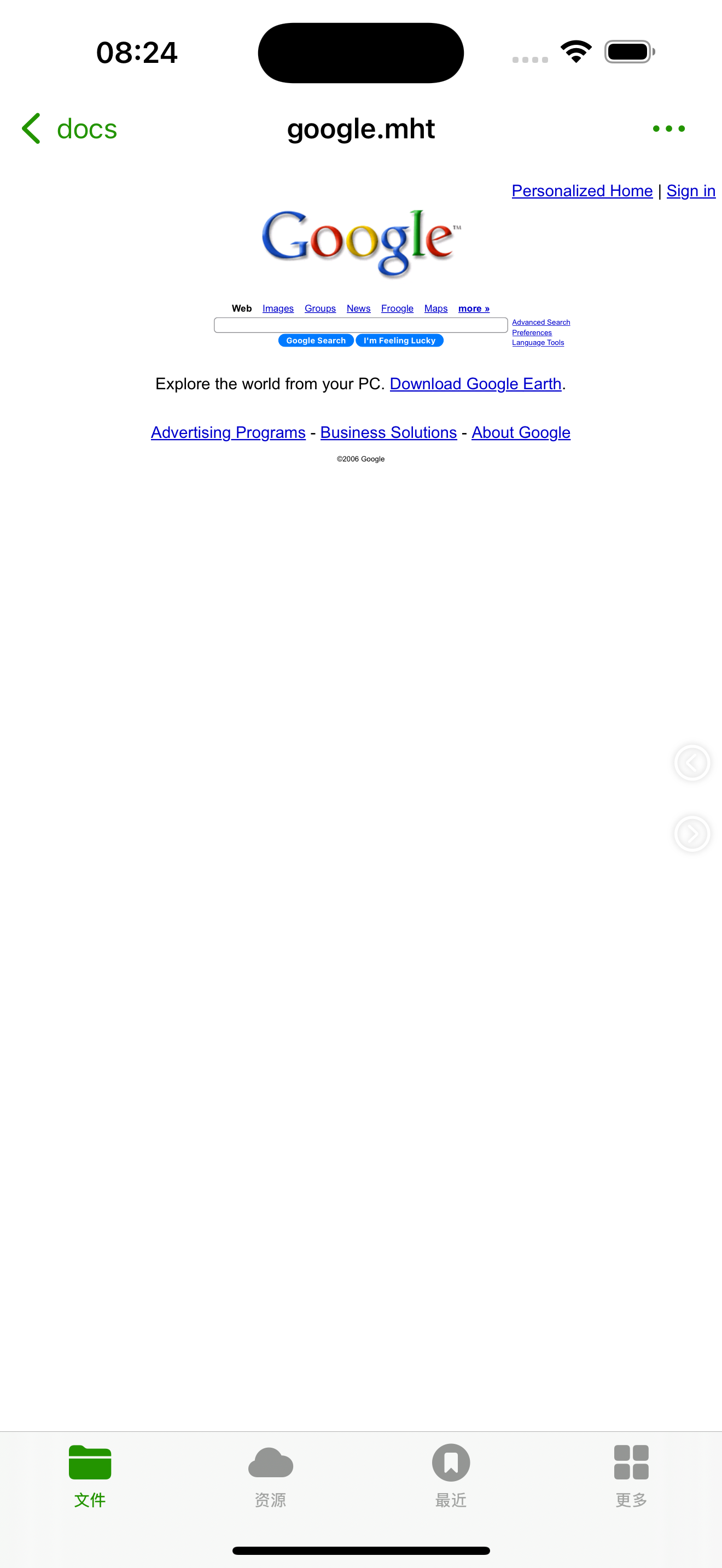
- Open the File: Fileso will attempt to open the MHTML file as a web page, allowing you to view the content just like in a web browser.
Converting MHTML to HTML
When there's a need to convert MHTML files to HTML format, Fileso App offers a straightforward and efficient solution without the need for external tools. Here are the detailed steps to convert MHTML to HTML using Fileso App:
- Open Fileso App: Ensure that Fileso App is installed on your iOS device and then open the app.
- Locate the MHTML File: In Fileso's file management interface, browse or search for the MHTML file you want to convert.
- Access the Menu: After selecting the MHTML file, tap the menu button at the bottom or top of the screen (usually a three-dot or more button) to open the operations menu.
- Select the Conversion Option: In the popup menu, find and tap on the "Convert to HTML" or a similar option.
- Complete the Conversion: Fileso will automatically handle the conversion process. Once completed, you can usually directly view the newly created HTML file or find it saved at the appropriate location.
With these steps, users can quickly and easily convert MHTML files to HTML format, facilitating editing or further processing in other applications. This functionality makes Fileso App not just a file browsing tool but also a practical file conversion tool.
Download Fileso App